Manage Borrow Position
Manage your active borrow positions from three places:
- Portfolio page: Each position is listed in the positions table. Hover the row for its available actions.
- Position page: Click a position to open its Position page, where the Actions tab groups every action for that position.
- Trading component: On the Markets page, select the market and term to act on a position you hold there.
Add Collateral
You can add collateral at any time while a position is active.
- Portfolio page
- Position page
- Trading component
Go to the Portfolio page, where your positions are listed.
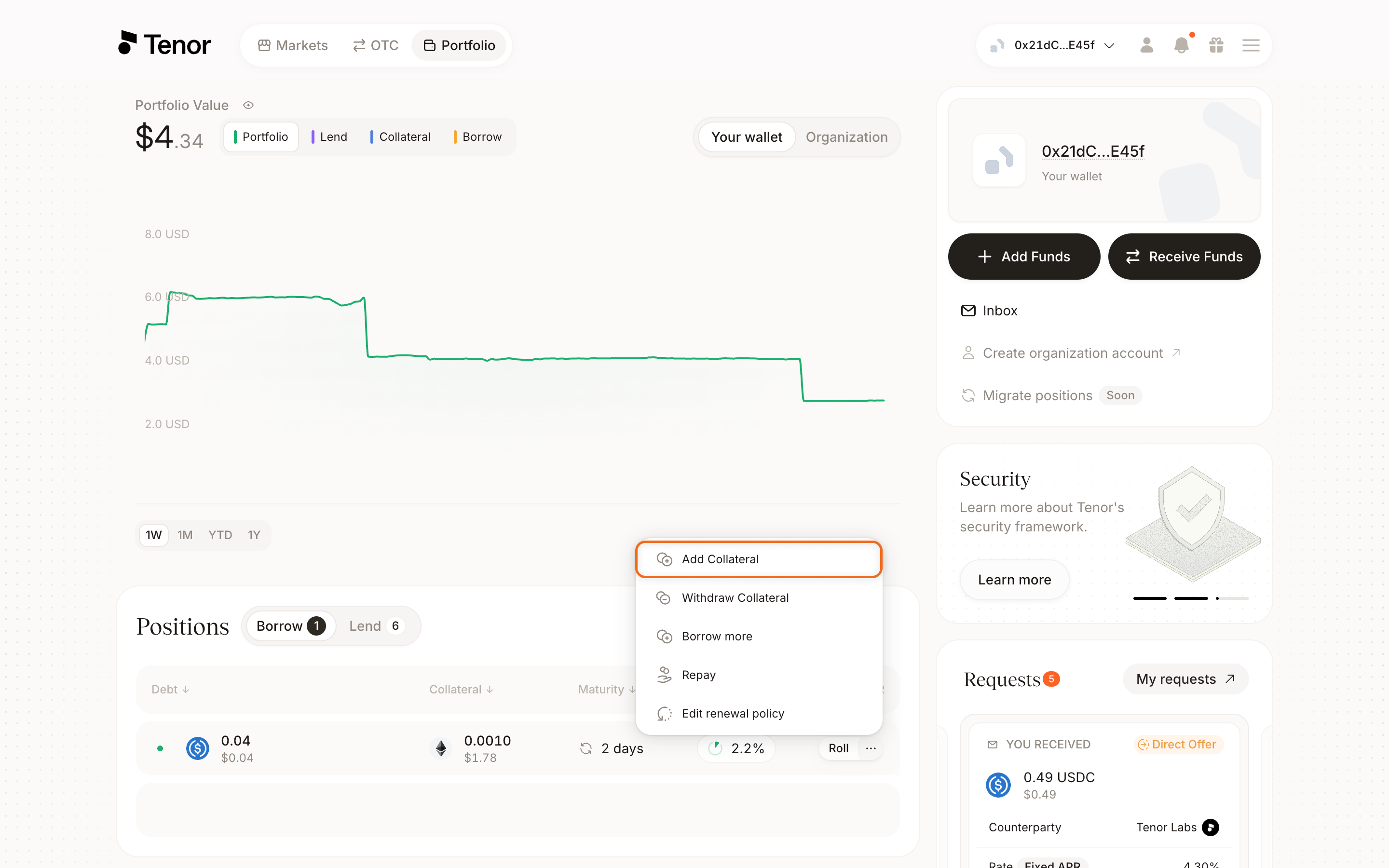
In the positions table, hover over the position's row, then click the three dots and click Add collateral. The Add collateral window opens.
Enter the amount of collateral you want to add.
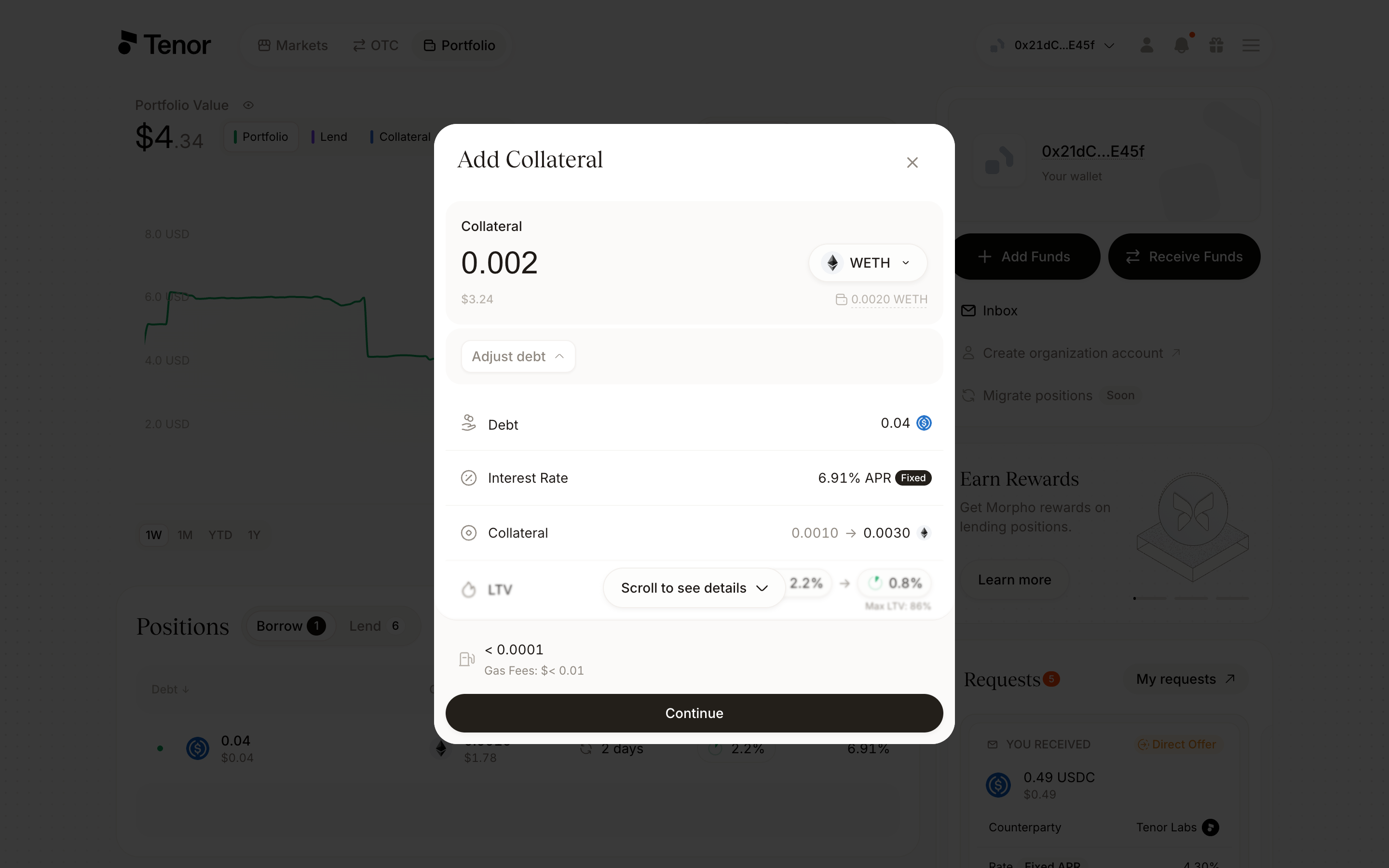
Click Continue, then confirm and sign the transaction in your wallet.
On the Portfolio page, click the position to open its Position page.
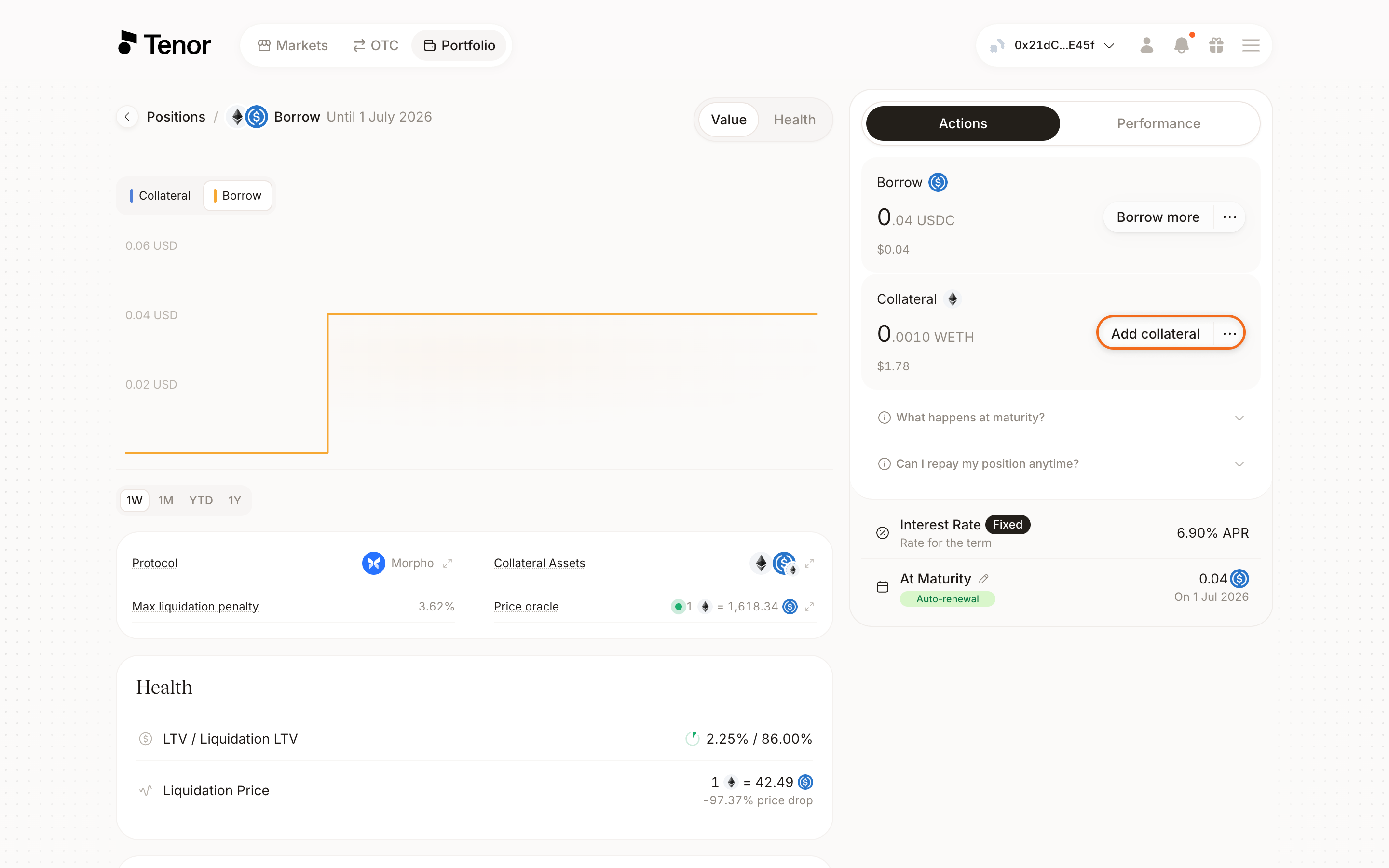
In the Actions tab, click Add collateral. The Add collateral window opens.
Enter the amount of collateral you want to add.
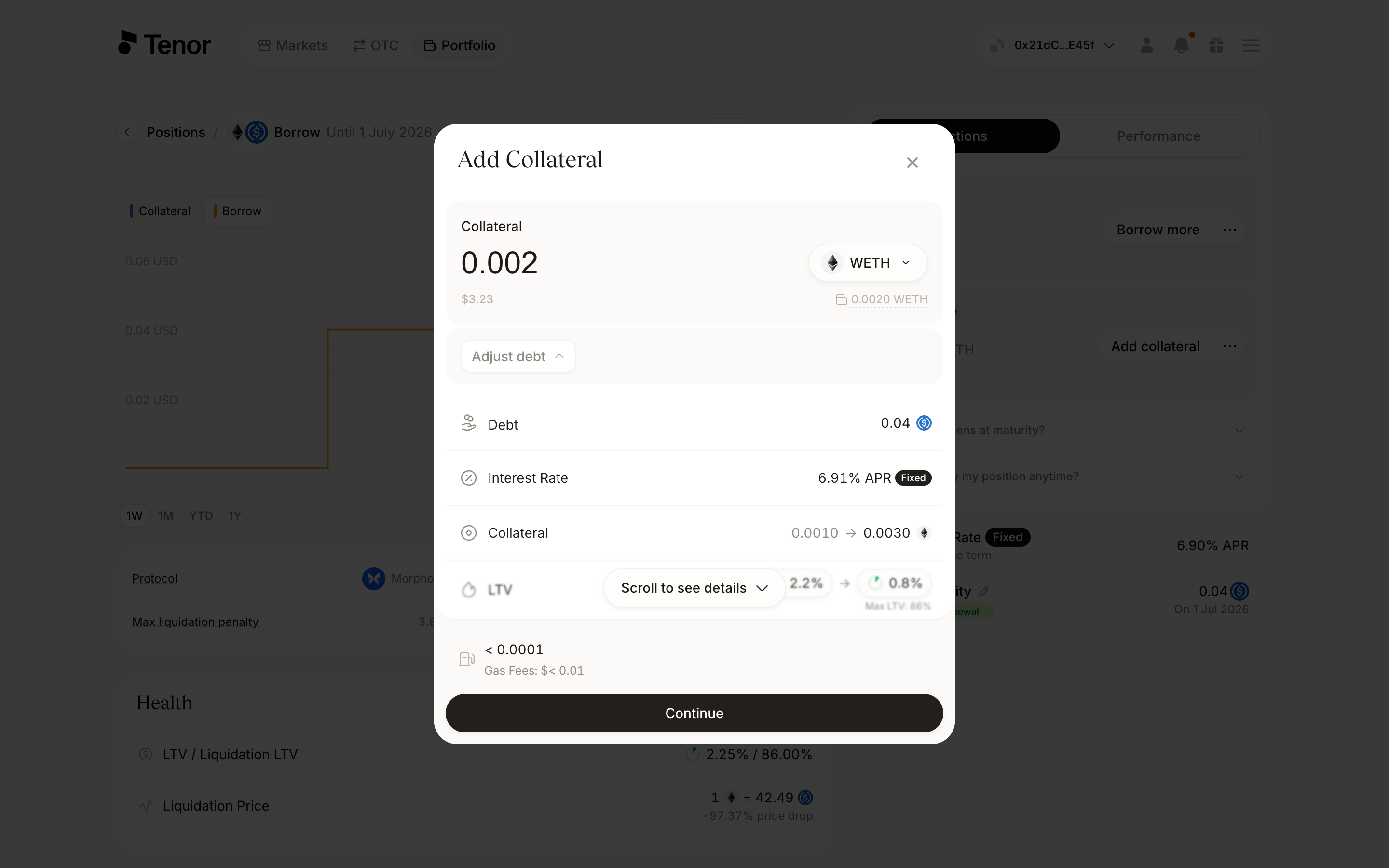
Click Continue, then confirm and sign the transaction in your wallet.
The trading component handles the whole flow in a single panel. The highlighted controls are the term selector, the Add tab in the Collateral section, and the collateral amount.
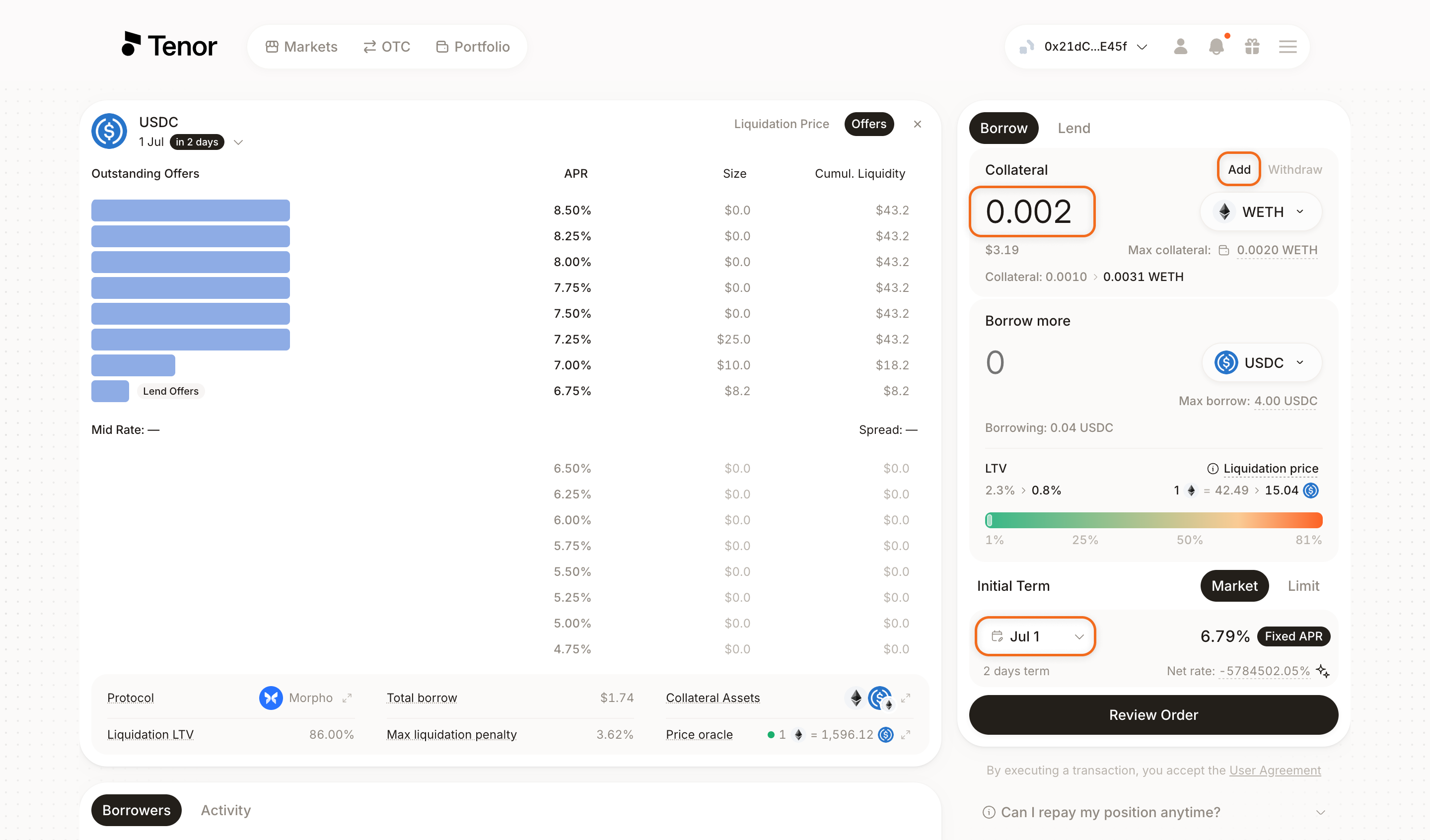
Go to the Markets page and select the market where you hold the position.
Select the term your position is in so it displays in the component.
In the Collateral section, make sure the Add tab is selected.
Enter the amount of collateral you want to add.
Click Review Order, review the details, then confirm and sign the transaction in your wallet.
Withdraw Collateral
You can withdraw collateral at any time, as long as the withdrawal keeps the position within its maximum LTV.
- Portfolio page
- Position page
- Trading component
Go to the Portfolio page, where your positions are listed.
In the positions table, hover over the position's row, then click the three dots and click Withdraw collateral. The Withdraw collateral window opens.
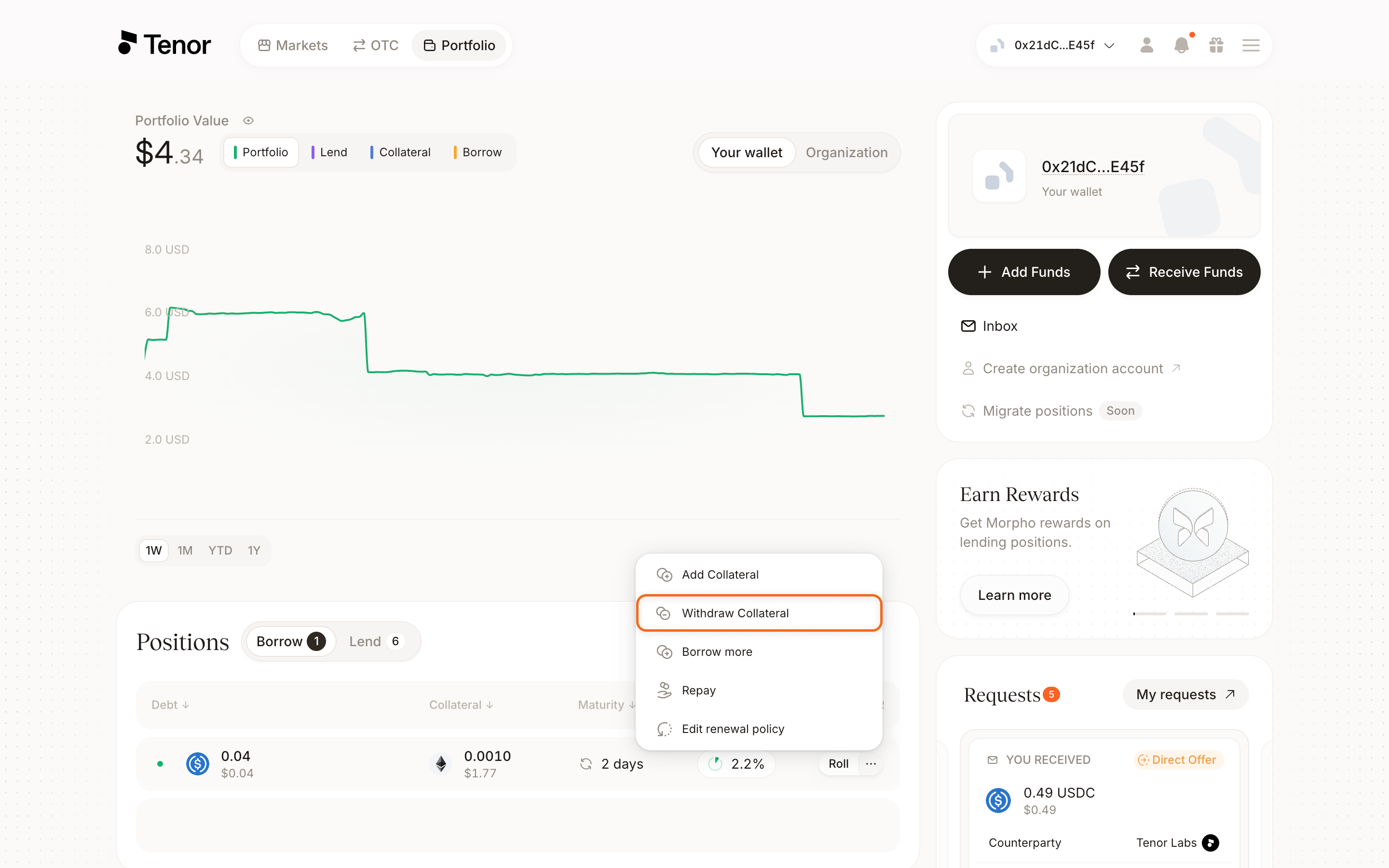
Enter the amount of collateral you want to withdraw.
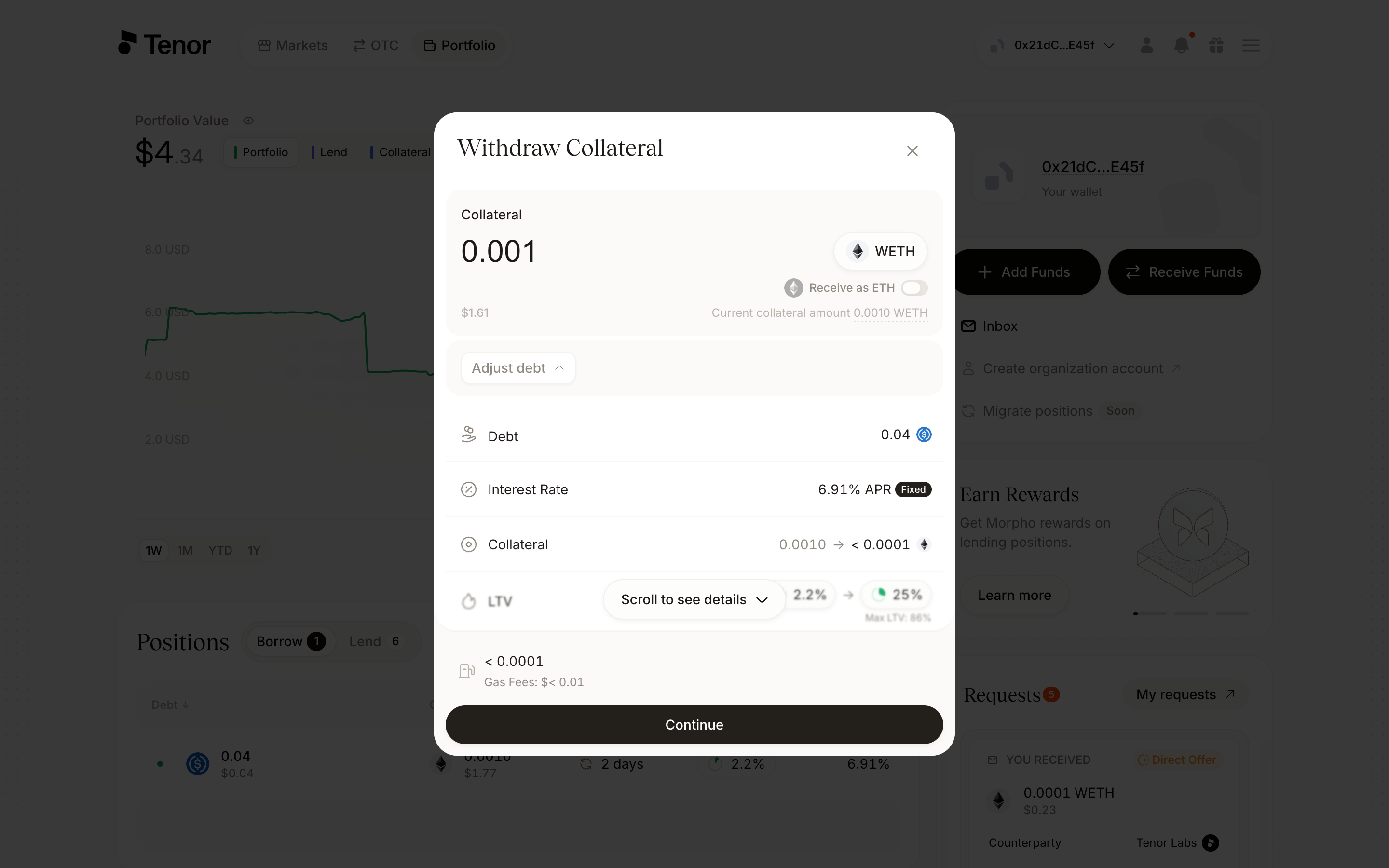
Click Continue, then confirm and sign the transaction in your wallet.
On the Portfolio page, click the position to open its Position page.
In the Actions tab, click the three dots in the Collateral section and click Withdraw collateral. The Withdraw collateral window opens.
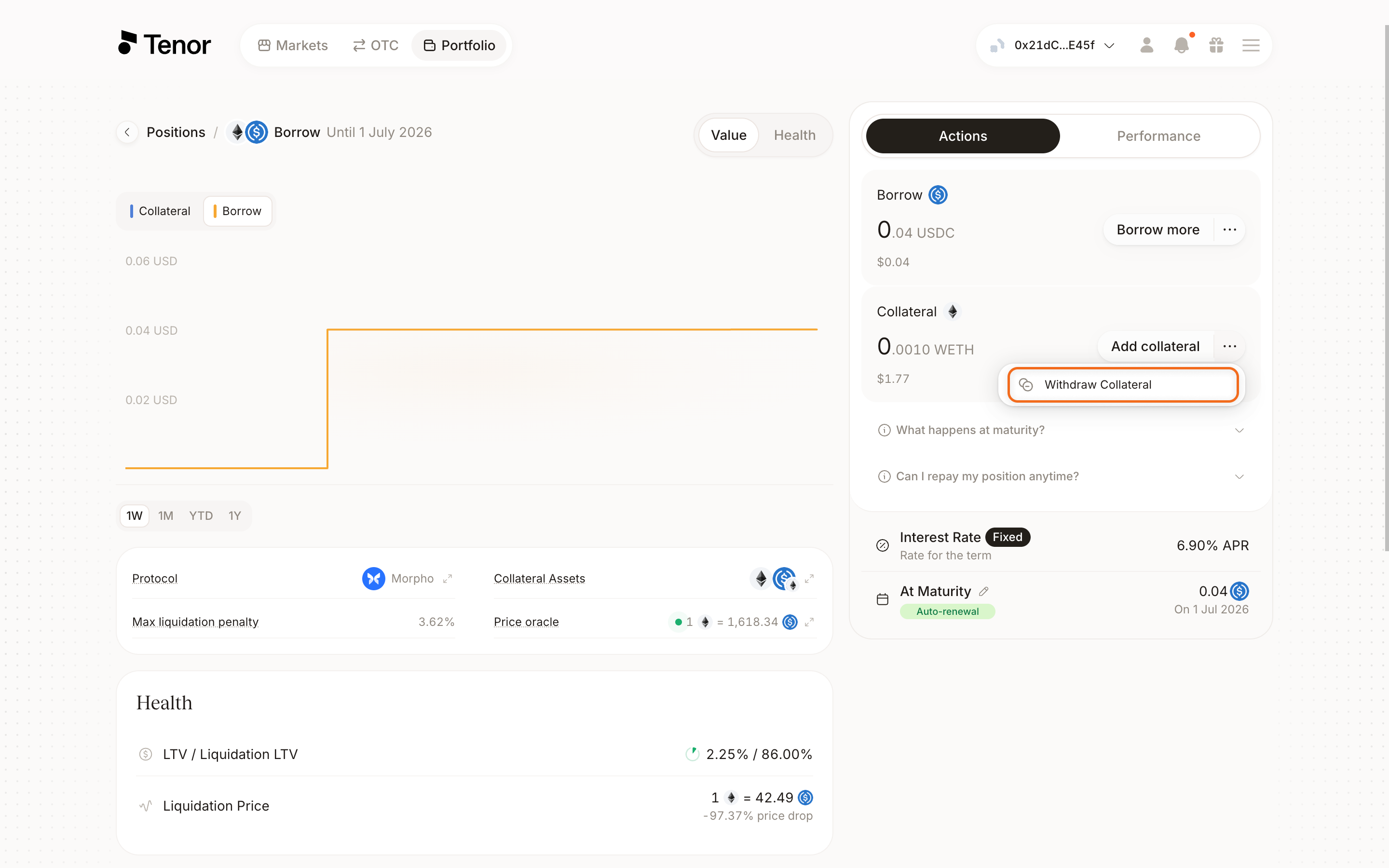
Enter the amount of collateral you want to withdraw.
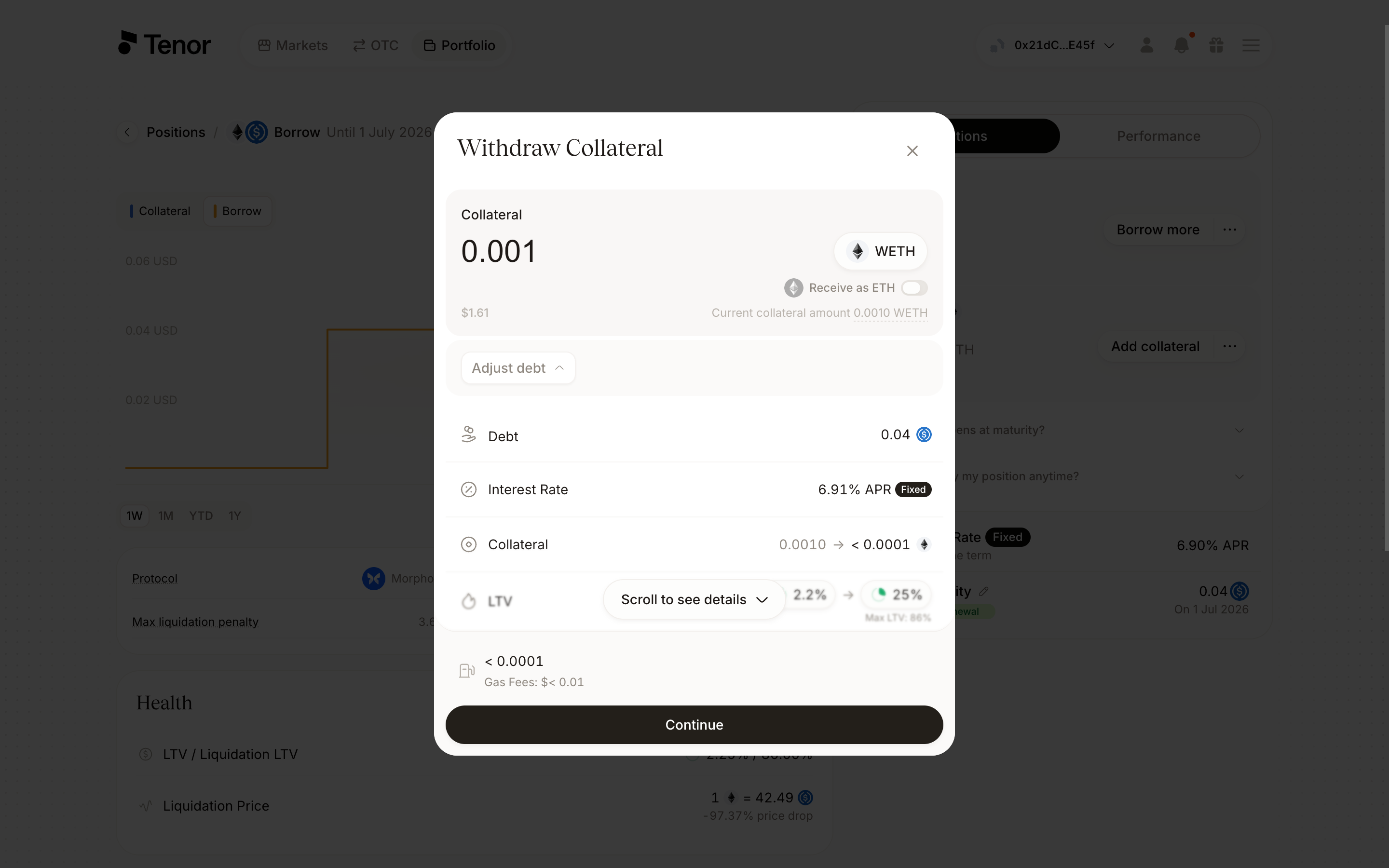
Click Continue, then confirm and sign the transaction in your wallet.
The trading component handles the whole flow in a single panel. The highlighted controls are the term selector, the Withdraw tab in the Collateral section, and the collateral amount.
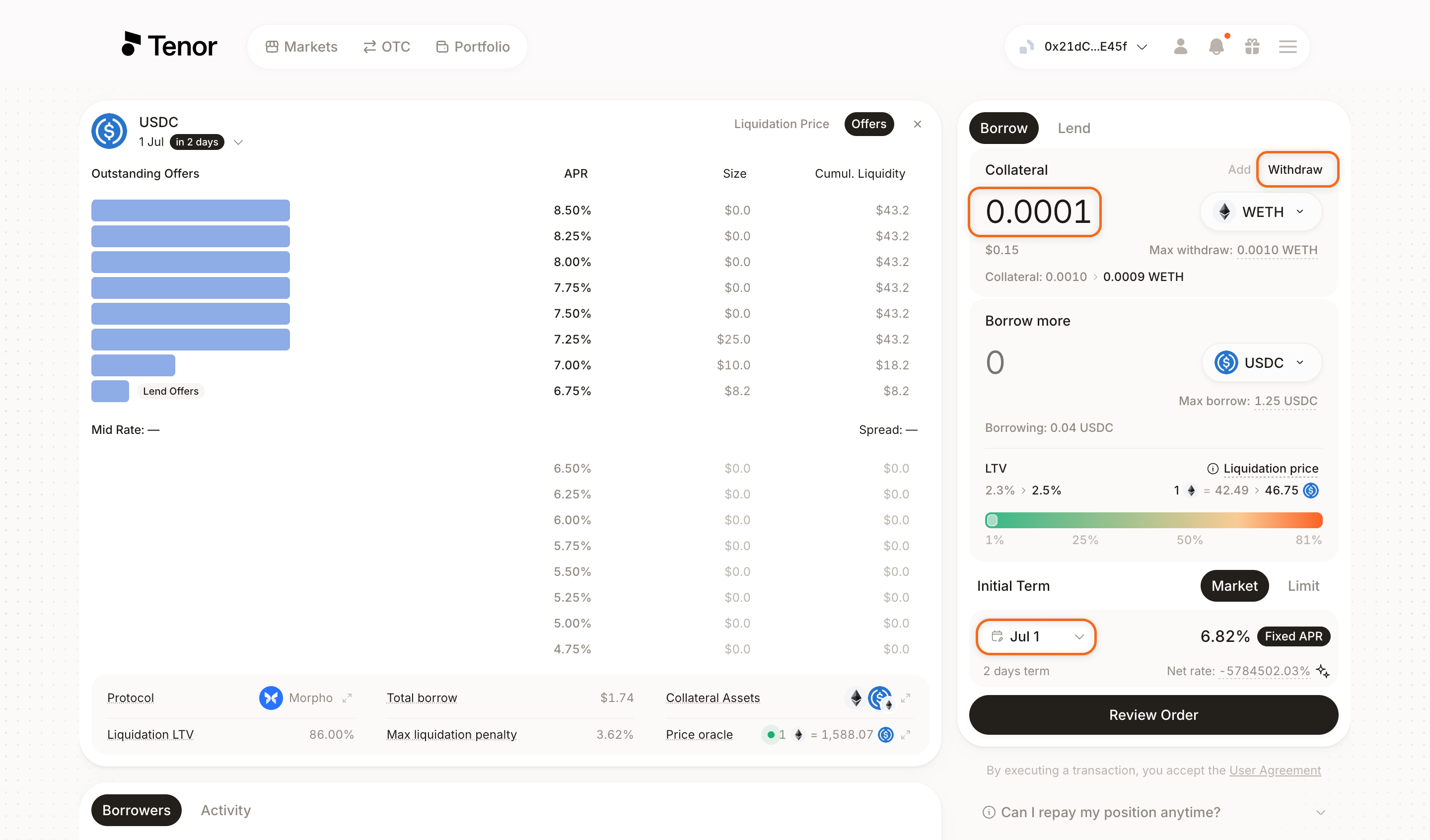
Go to the Markets page and select the market where you hold the position.
Select the term your position is in so it displays in the component.
In the Collateral section, select the Withdraw tab.
Enter the amount of collateral you want to withdraw.
Click Review Order, review the details, then confirm and sign the transaction in your wallet.
Borrow More
You can borrow more against an existing position. To borrow at a different term, follow the standard borrow guide.
- Portfolio page
- Position page
- Trading component
Go to the Portfolio page, where your positions are listed.
In the positions table, hover over the position's row, then click the three dots and click Borrow more. The Borrow more window opens.
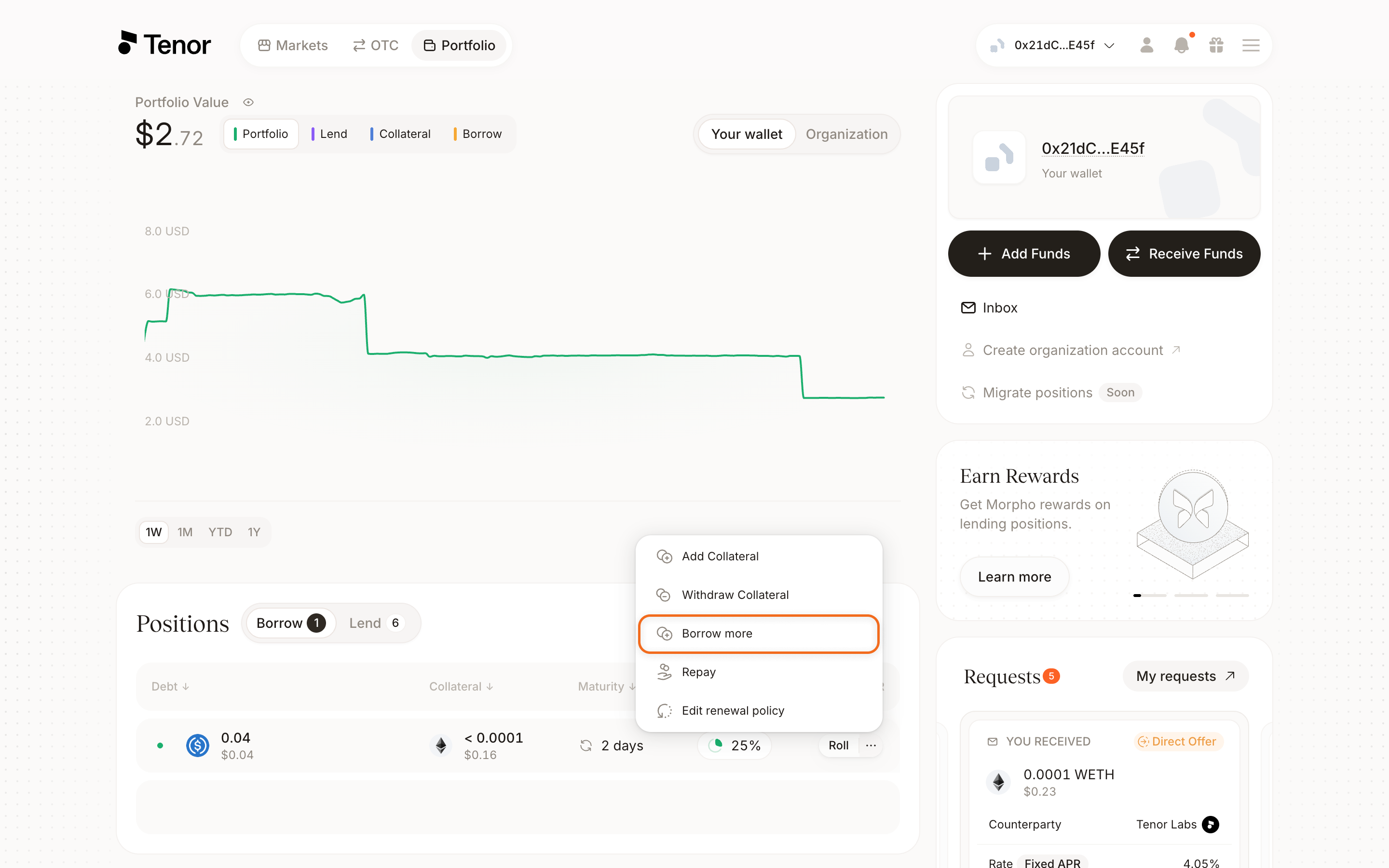
Enter the additional amount you want to borrow.
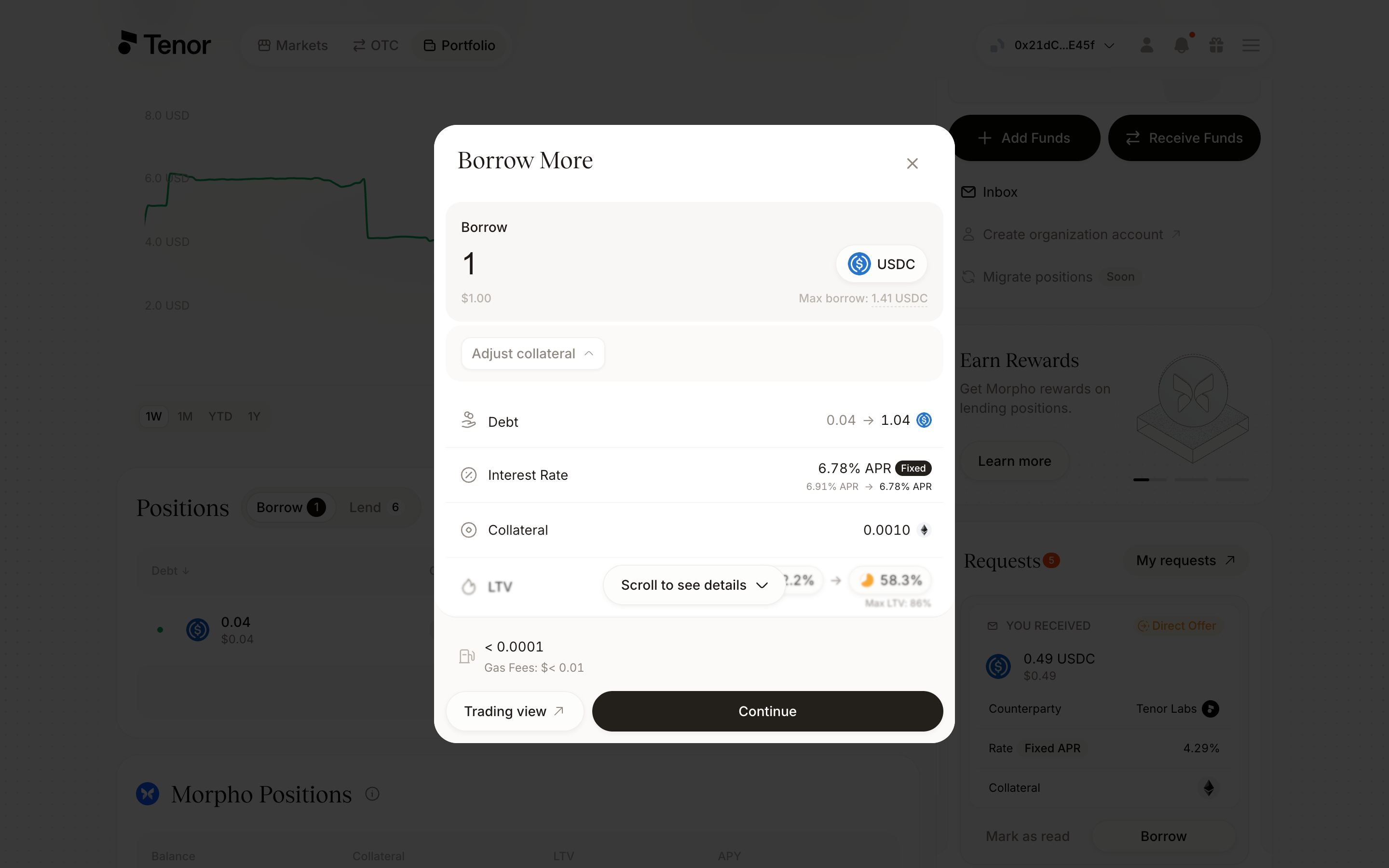
Click Continue, then confirm and sign the transaction in your wallet.
On the Portfolio page, click the position to open its Position page.
In the Borrow section of the Actions tab, click Borrow more. The Borrow more window opens.
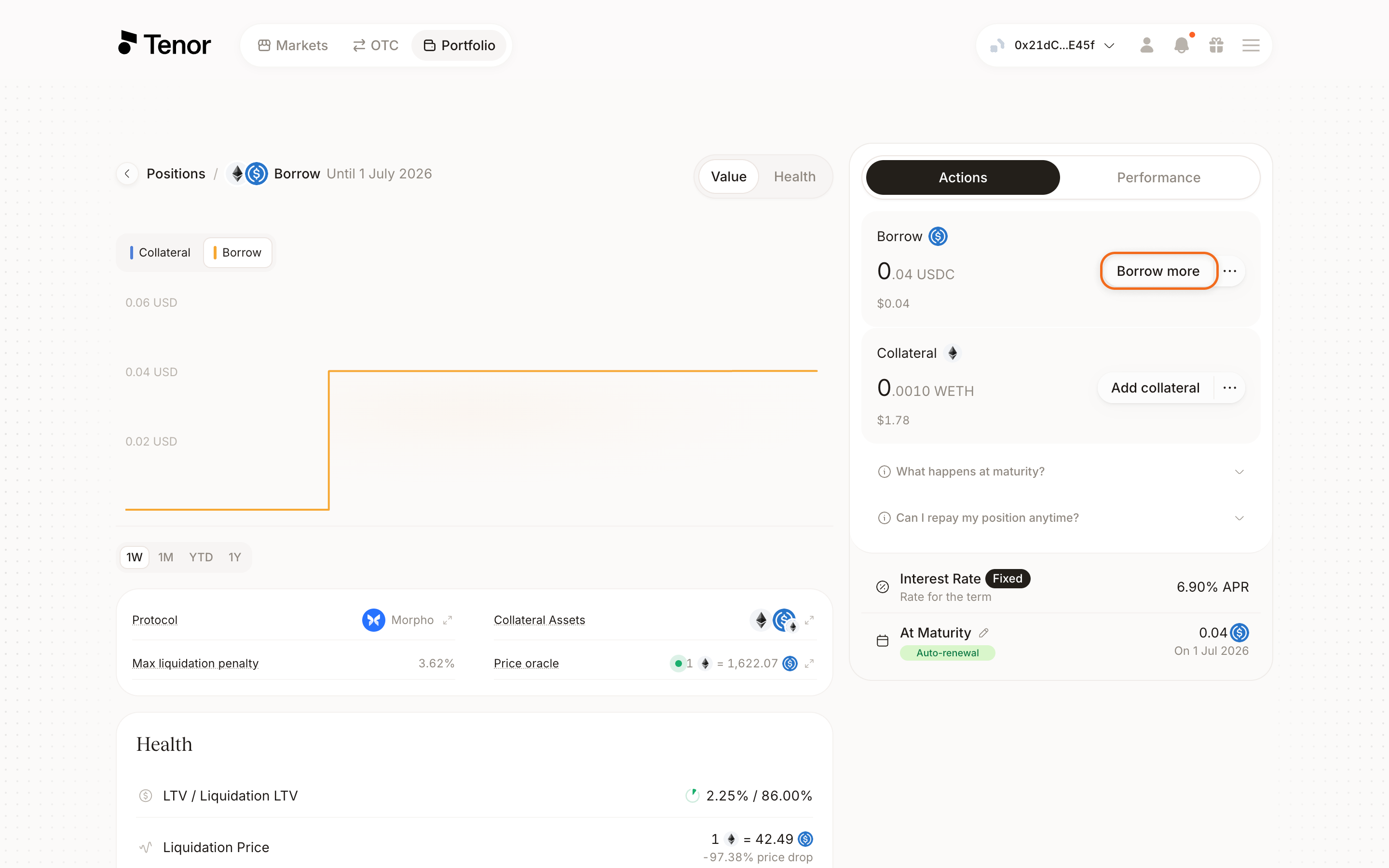
Enter the additional amount you want to borrow.
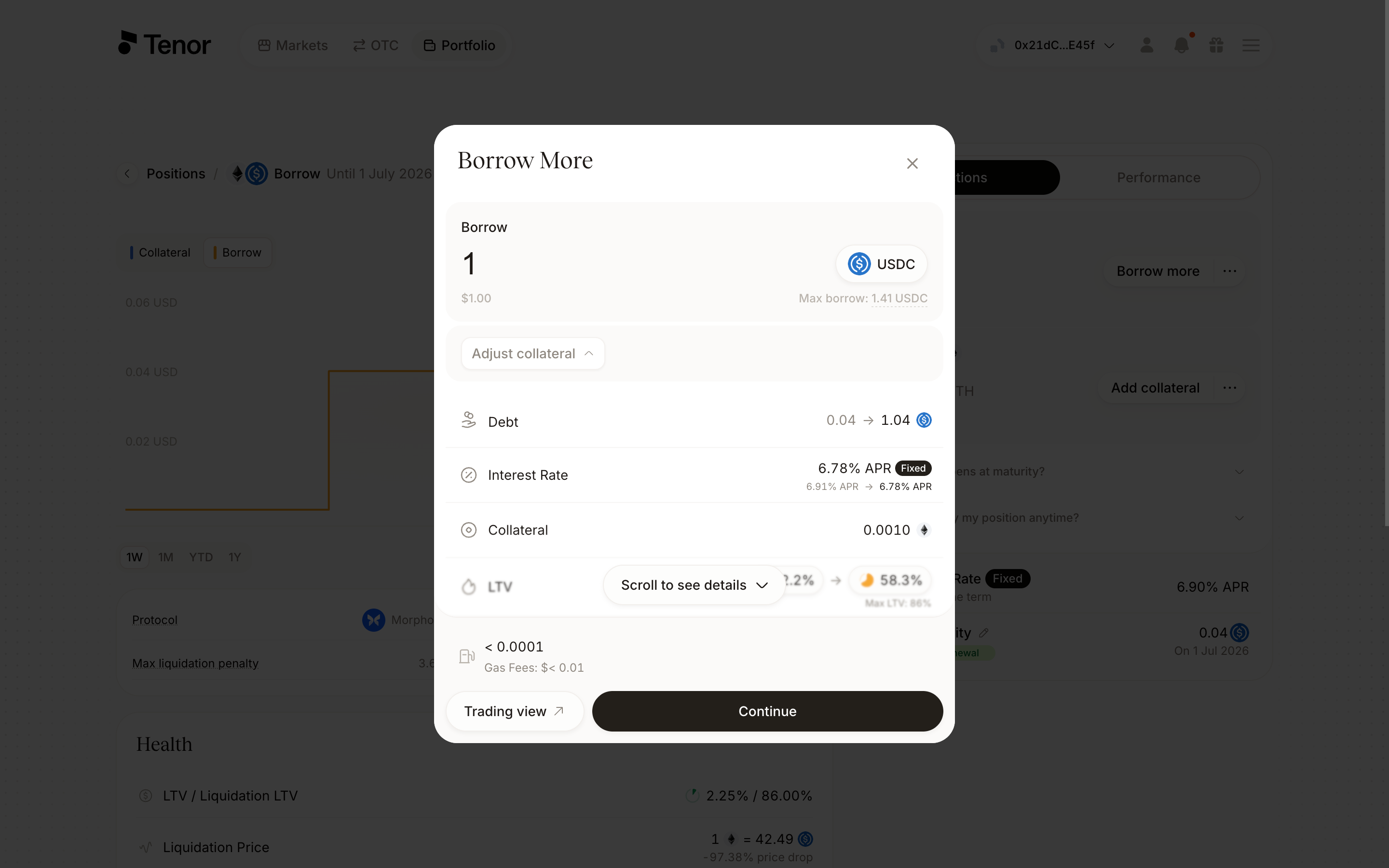
Click Continue, then confirm and sign the transaction in your wallet.
The trading component handles the whole flow in a single panel. The highlighted controls are the term selector and the amount in the Borrow more section.
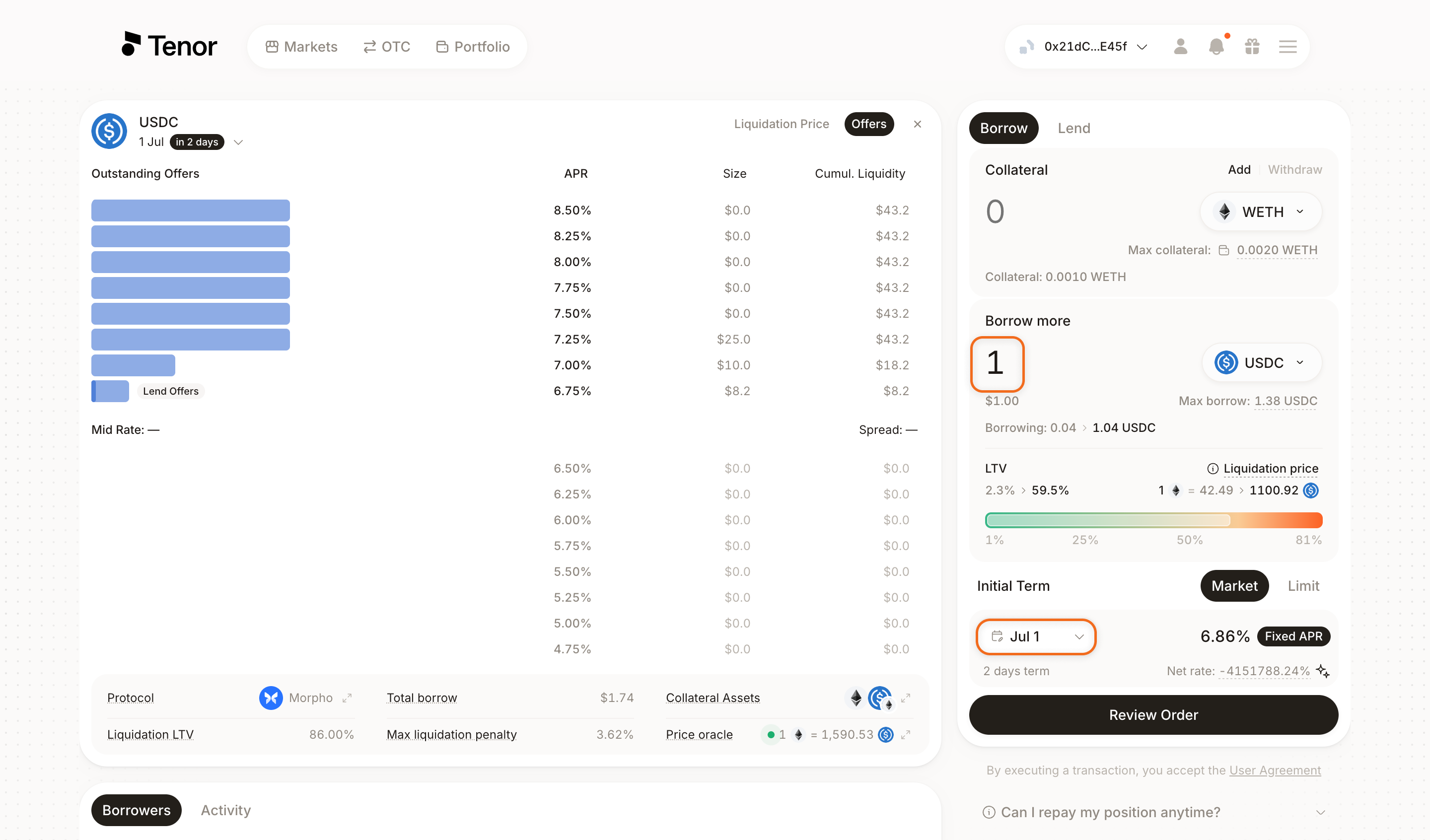
Go to the Markets page and select the market where you hold the position.
Select the term your position is in so it displays in the component.
In the Borrow more section, enter the additional amount you want to borrow.
Click Review Order, review the details, then confirm and sign the transaction in your wallet.
Note: If the new total exceeds the position's maximum LTV, you will need to add collateral.
Roll
You can roll a borrow position to a new term before maturity.
- Portfolio page
- Position page
Go to the Portfolio page, where your positions are listed.
In the positions table, hover over the position's row, then click Roll. The Roll position window opens.
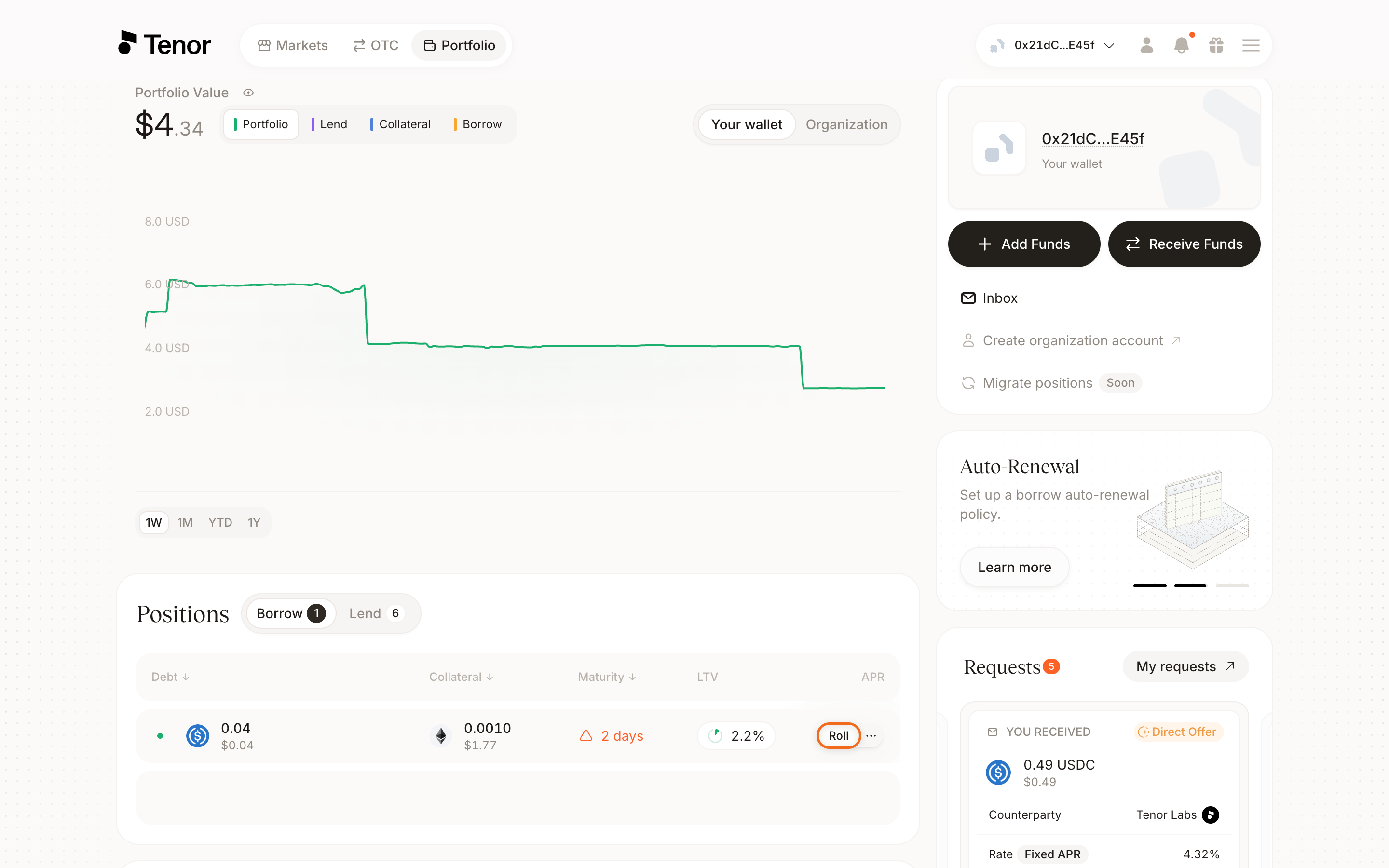
The Roll position window shows your current term alongside the new term you are rolling into. If there is liquidity at a longer-dated term, you can roll at the market rate; select the term you want under New Term. If there is no liquidity, select the Limit tab to place a limit offer at your target rate. Review the new rate before continuing.
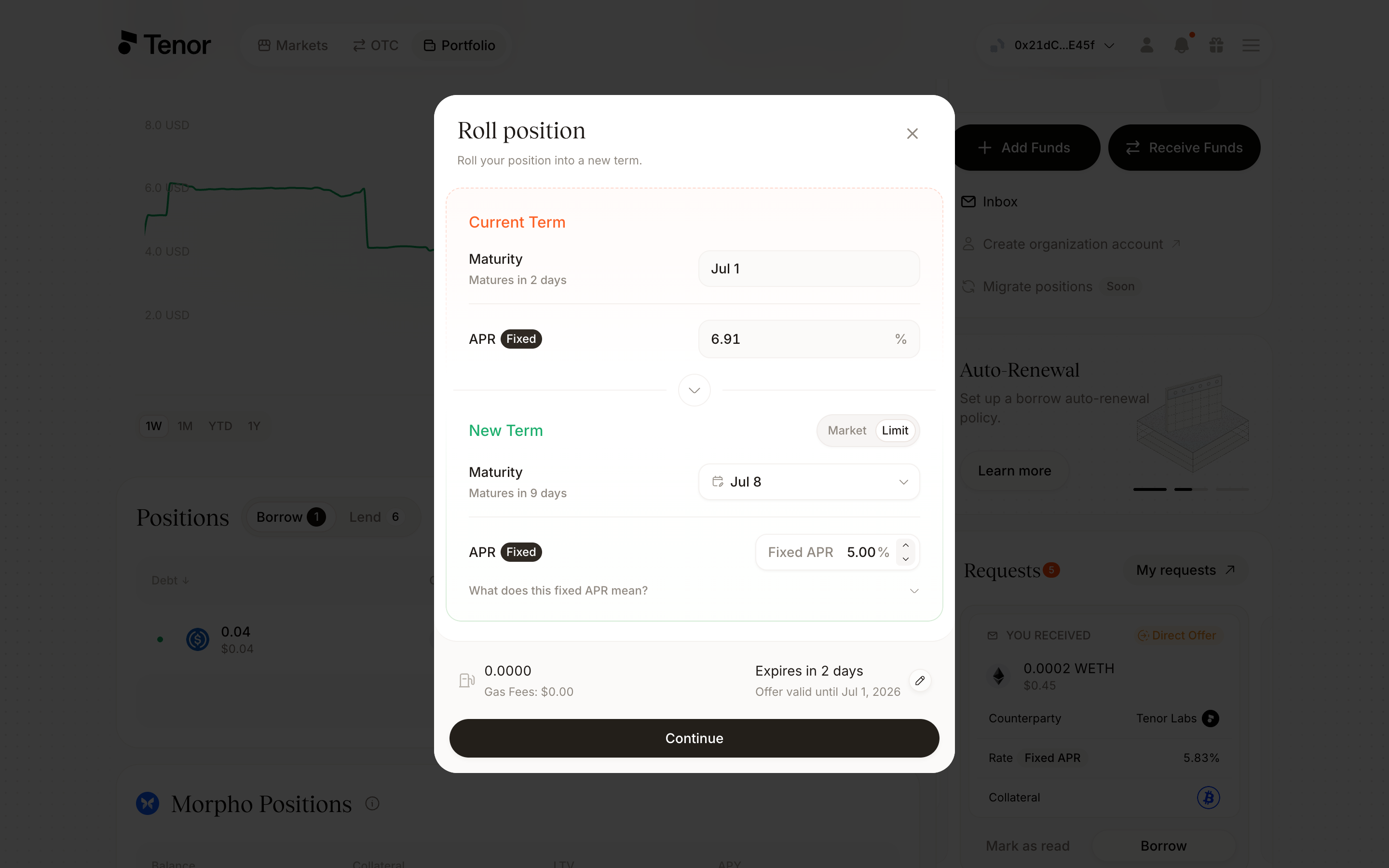
Click Continue, then confirm and sign the transaction in your wallet.
On the Portfolio page, click the position to open its Position page.
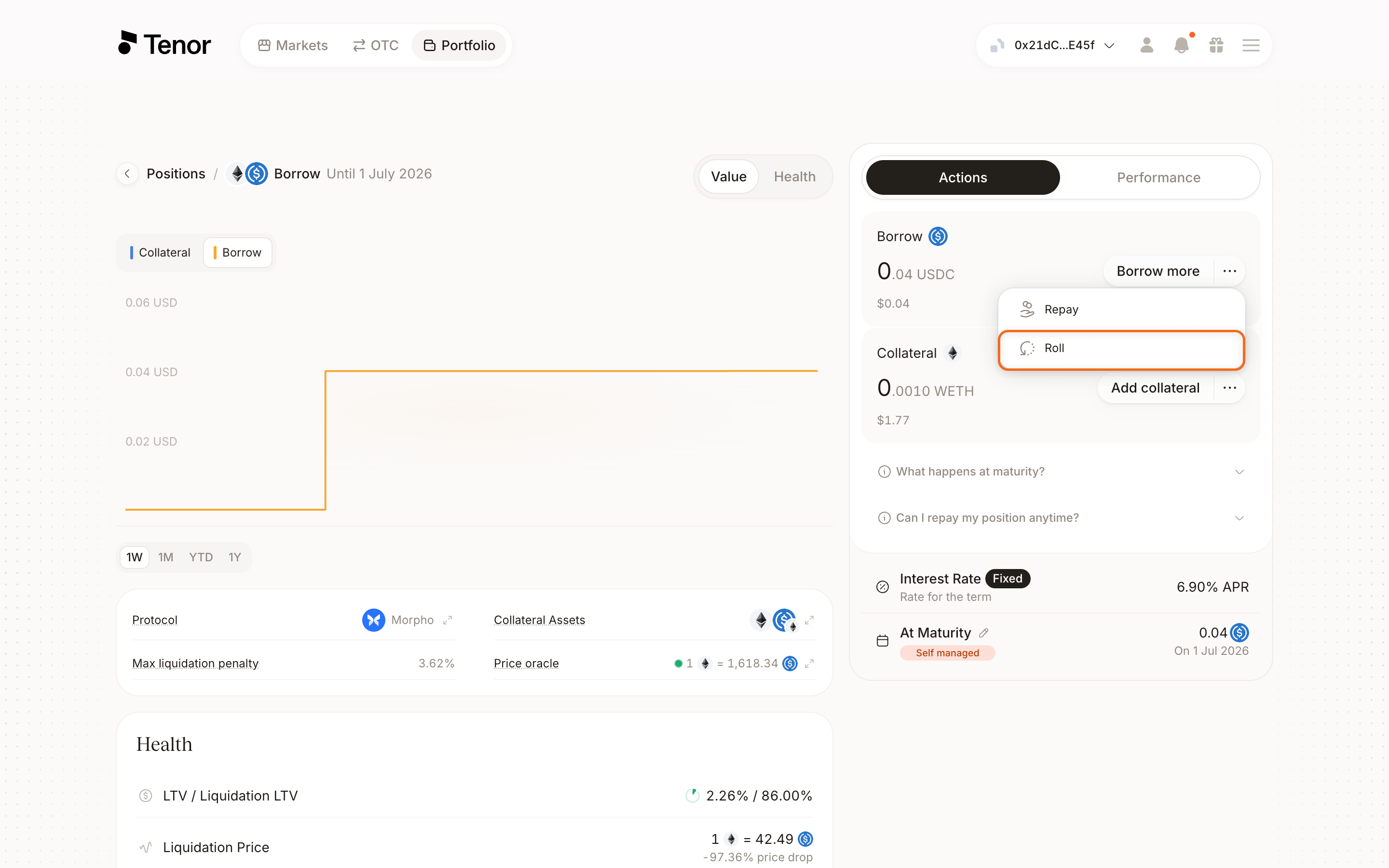
In the Borrow section of the Actions tab, click the three dots next to Borrow more and click Roll. The Roll position window opens.
The Roll position window shows your current term alongside the new term you are rolling into. If there is liquidity at a longer-dated term, you can roll at the market rate; select the term you want under New Term. If there is no liquidity, select the Limit tab to place a limit offer at your target rate. Review the new rate before continuing.
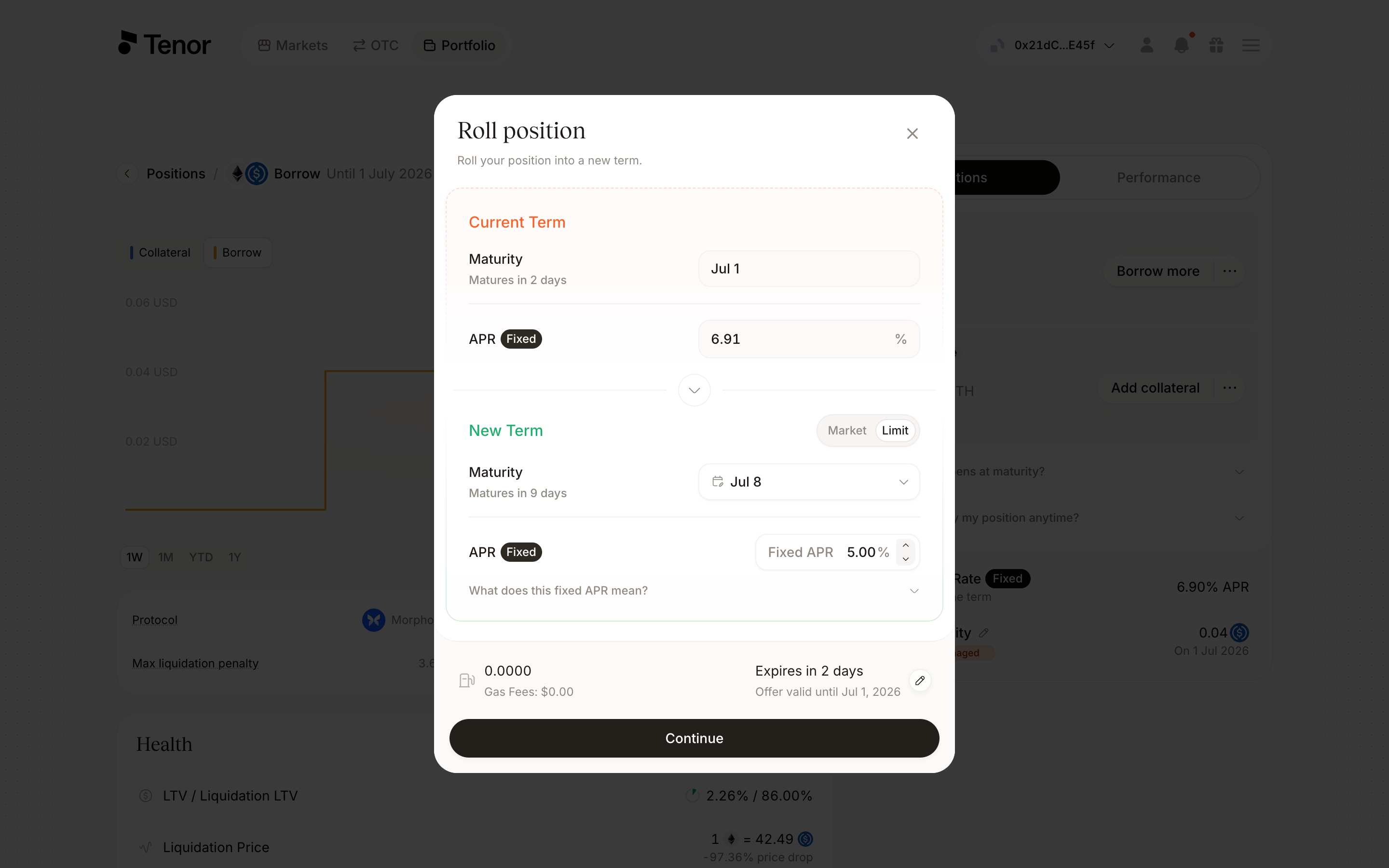
Click Continue, then confirm and sign the transaction in your wallet.